> ## Documentation Index
> Fetch the complete documentation index at: https://docs.bitstudio.ai/llms.txt
> Use this file to discover all available pages before exploring further.
# Make flat lays and packshots
> Use product-focused presets for clean garment images without a visible model.
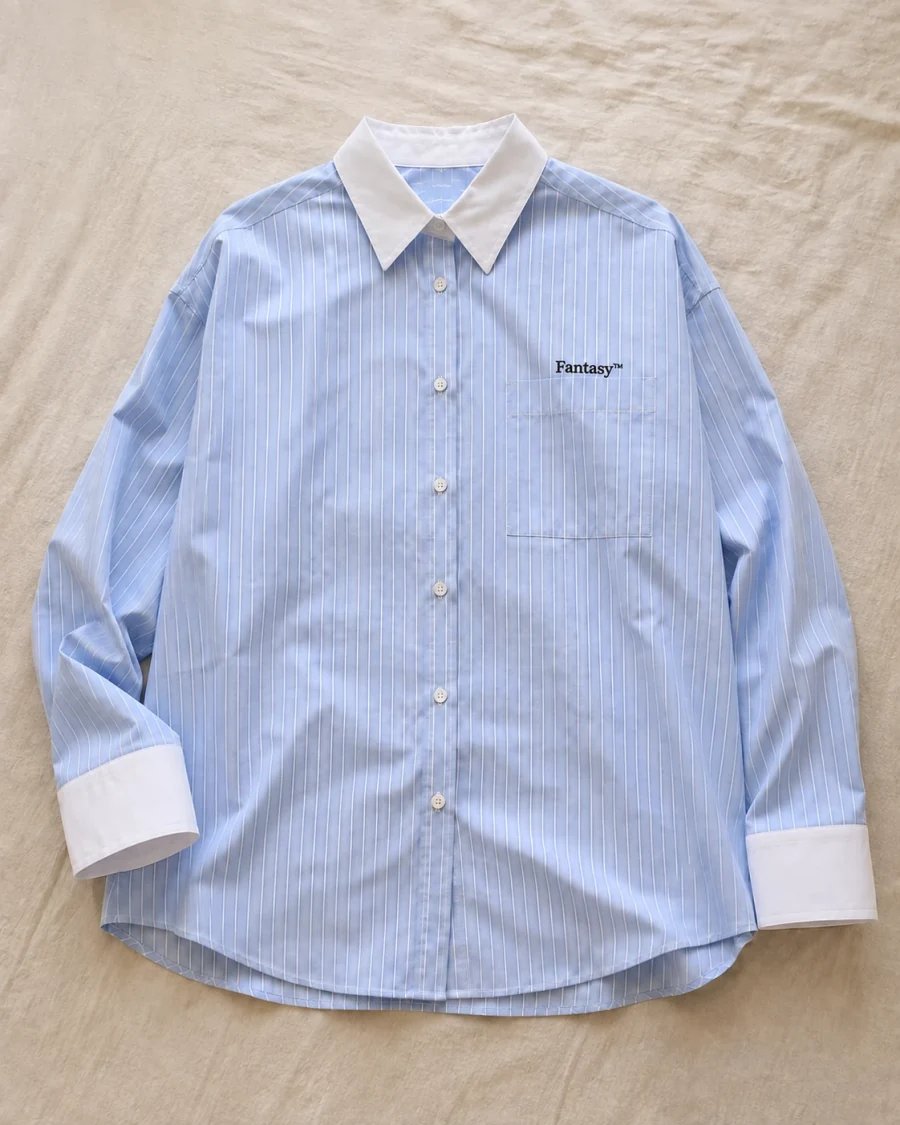
Use a product-focused preset when the item should stand on its own. A flat lay, ghost mannequin image, or clean packshot serves a different purpose from an on-model campaign photo.
| Format | Useful for |
| ------------------- | ---------------------------------------------------------------------- |
| **Flat lay** | Showing the product laid out, including its shape and surface details. |
| **Ghost mannequin** | Showing garment volume and structure without a visible person. |
| **Packshot** | Isolating the product in a controlled composition. |
## Create the image
1. Open **Generate** and choose the garment under **Outfit**.
2. Open **Select Preset → Packshot** and choose a preset that matches the desired product view.
3. Clear the **Avatar** if you do not want a person in the image.
4. Add a short composition instruction, choose the frame, and generate one image.
```text theme={null}
Show the complete shirt centered in the frame, sleeves laid naturally,
with even space around every edge. Preserve the collar and cuff details.
```
## Match the source to the view
Use a front reference for a front shot and a back reference for a back shot. Save both inside the same wardrobe item. If a hidden feature matters, supply a photo of it rather than asking the model to invent it.
 ## Check product accuracy
Review symmetry, seams, pockets, logos, and the garment outline. Check whether the background remains clean and whether shadows match the intended presentation.
Generating a clean background may also change the product. If your original product photo is already accurate and only the background needs work, start in the [Editor](/features/editor) and keep the edit focused on the surrounding area.
[Learn how presets control a shot →](/features/presets)
## Check product accuracy
Review symmetry, seams, pockets, logos, and the garment outline. Check whether the background remains clean and whether shadows match the intended presentation.
Generating a clean background may also change the product. If your original product photo is already accurate and only the background needs work, start in the [Editor](/features/editor) and keep the edit focused on the surrounding area.
[Learn how presets control a shot →](/features/presets)