

What do you want to make?
Put a product on a model
Turn a flat lay or mannequin photo into an image for your product page.
Try an outfit on a person
Start from a person’s photo and change what they are wearing.
Use the same model again
Reuse an avatar across products, scenes, and campaigns.
Build a campaign
Create a consistent set of images with different poses and compositions.
Improve an existing photo
Change the background, correct one area, or refine the styling.
Make a fashion video
Animate a finished image with a clear motion and camera direction.
From product reference to studio photo
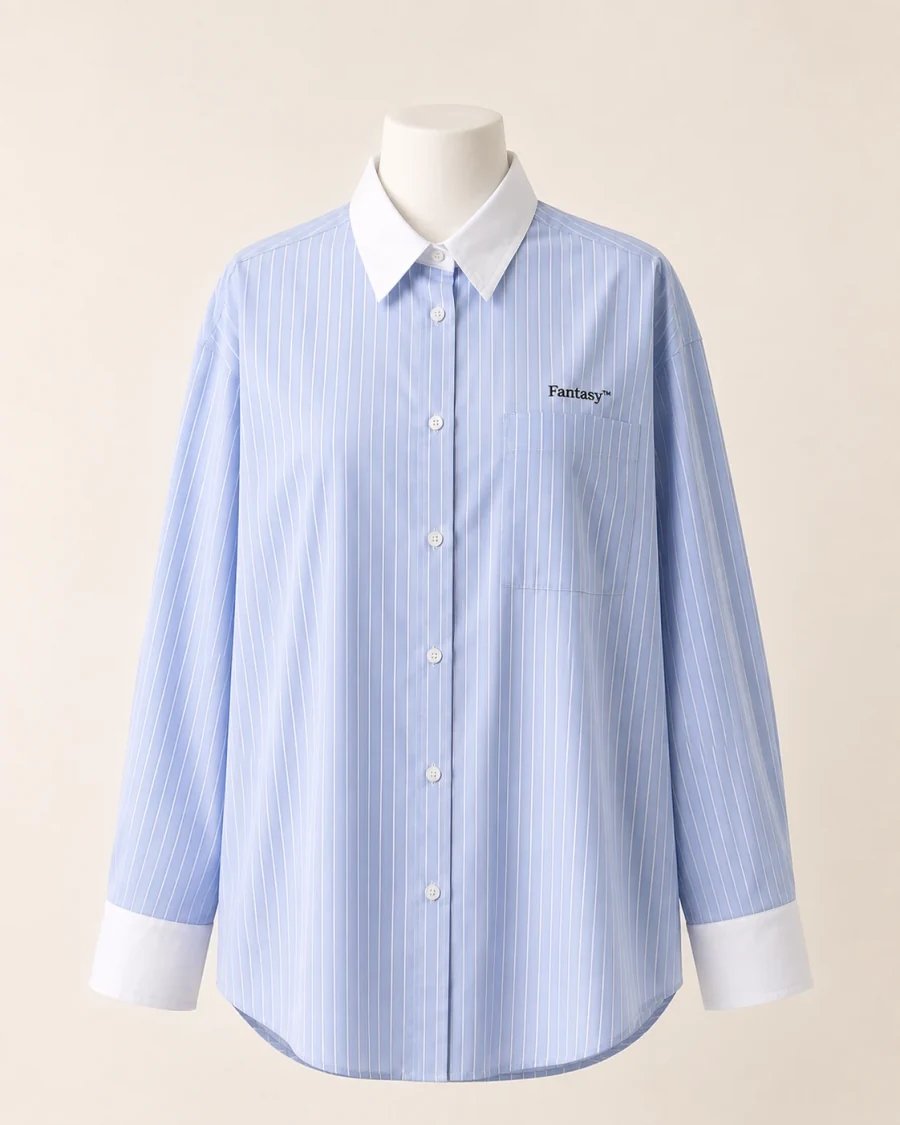
Start with a clear reference of the actual garment.
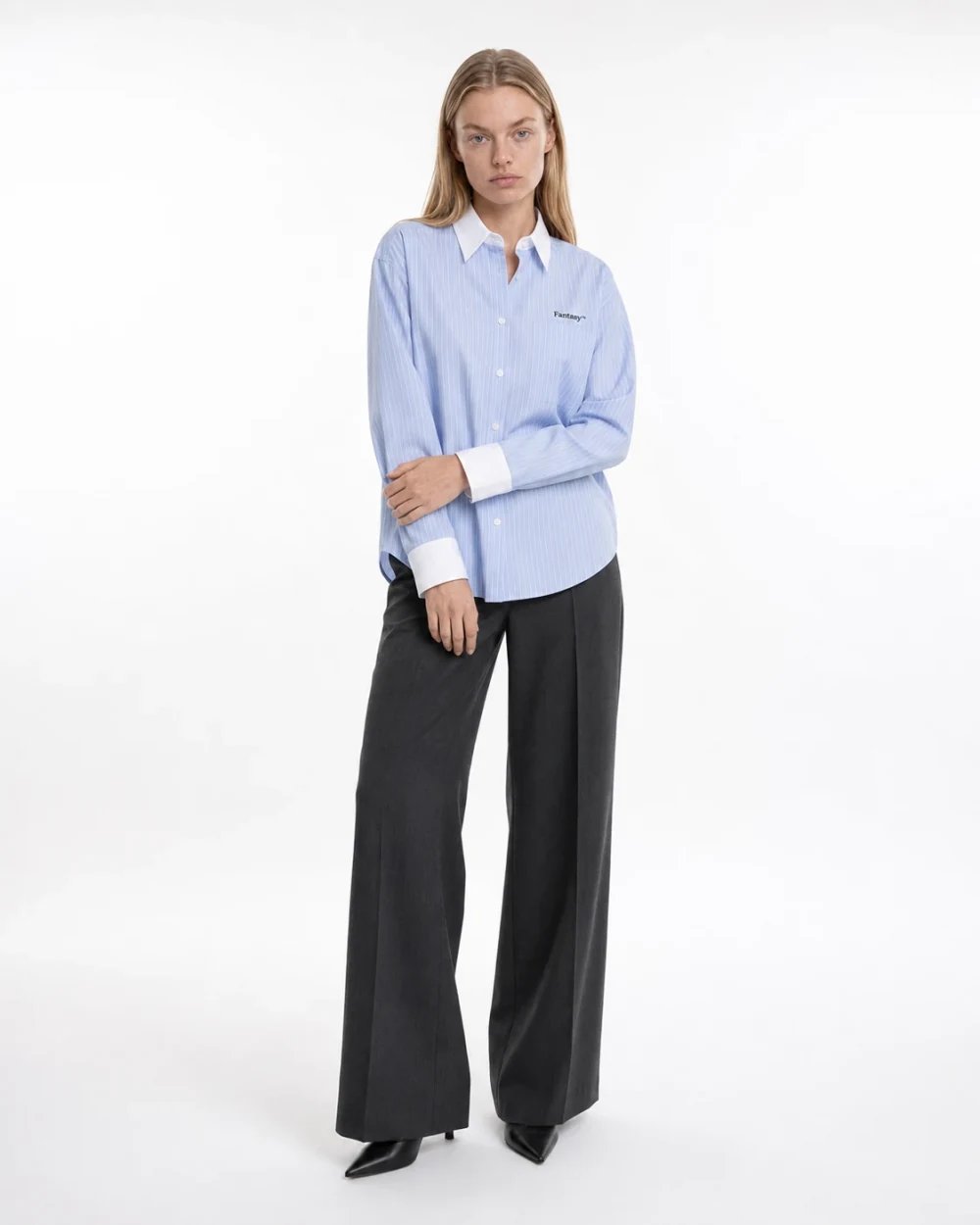
Build a photo around your product, avatar, and scene.
A good working rhythm
- Prepare the inputs. Give the product, person, and scene clear references.
- Make one image first. Check the composition before creating more variations.
- Refine the best result. Change one thing at a time and compare versions.
- Check the details. Inspect the garment, face, hands, and crop before downloading.
Find your way around
Learn the difference between an avatar, an outfit, and a preset.
Build with the API
Upload images, start a generation, and retrieve the result from your application.