Extend adds image content outside the current frame. Upscale creates a higher-resolution version. Choose based on whether you need more room in the composition or more pixels in the finished image.

Make space with Extend Image

Open the image in the Editor and select Extend Image. Choose a target aspect ratio and position the original within the new canvas. Describe what should fill the added space, then select Extend.
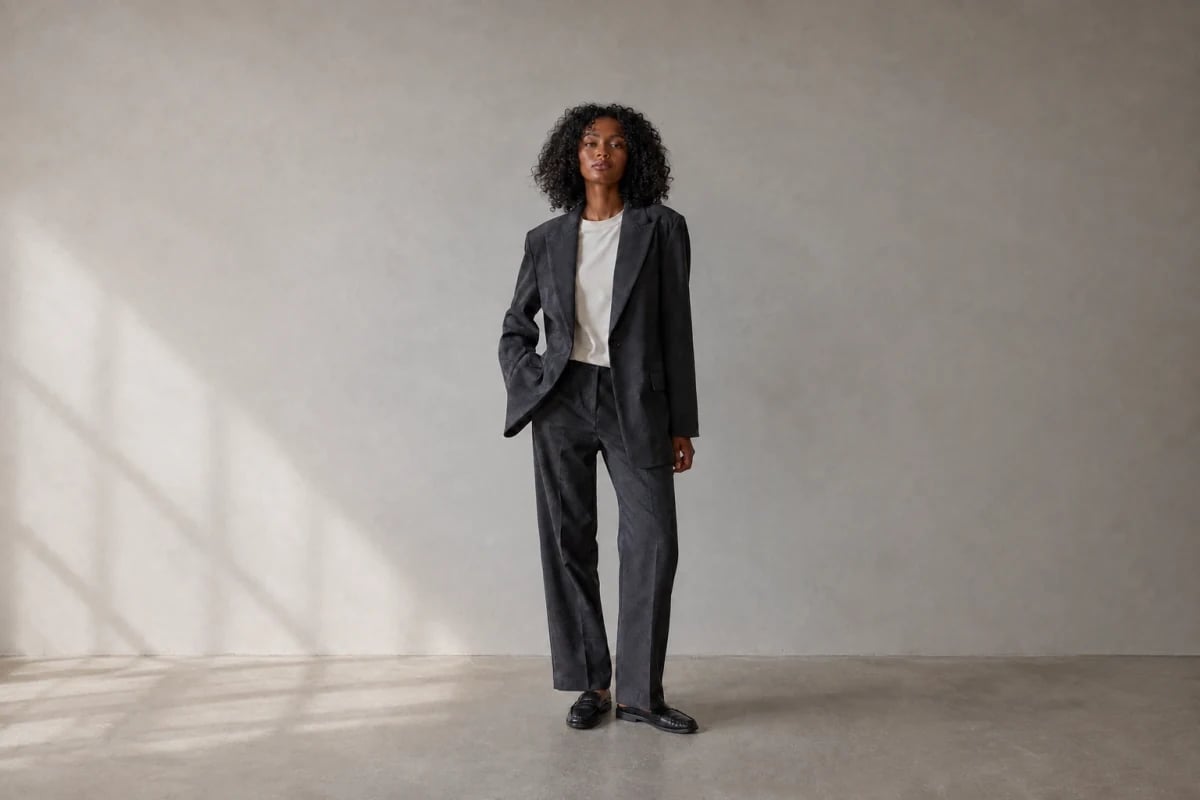
Use this for a portrait that needs to become a wider campaign banner or an image that needs more space above the subject. Review the new boundaries, shadows, and any newly generated body or clothing detail.
Extended composition of the gray-suit fashion photo with more space around the subject

A published example after handbag removal and extending the suit photo into a wider composition.

Upscale the final selection

Open a finished image and choose Upscale from its actions. Review the available size and credit cost, then start the upscale. Wait for the new version to finish and select it before downloading. Check fine detail at full size. Upscaling can improve a delivery file, but it cannot verify a logo or recover product details that were wrong in the source. Fix the image first, then upscale the final choice.

Pick the shape before a batch

Choose the output ratio in Generate before creating a product series. Use a consistent portrait ratio for full-length model shots, a square for a square product grid, or a landscape ratio for a banner. Leave safe space around the garment for later layout crops. Review and download versions →