

1
Open Generate
Open Studio and choose the Generate tab in the creation panel. If a welcome tutorial is open, follow it or dismiss it to use your own product.
2
Choose an avatar
Select the image tile beside Avatar and choose a model from the library. Leave the description unchanged for your first attempt.An avatar is the person in your new photo. You can create your own later.
3
Add the product
Select the image tile beside Outfit, then Upload. Choose a front-facing photo that shows the complete garment.When Save to wardrobe opens, give the item a recognizable name, such as “Blue striped shirt.” Add a back view if you have one, then select Save. You can also choose Skip for now to use the upload once.
4
Choose a scene
Select Select Preset in the Prompt tile. In the Preset Library, choose Studio and a simple studio setup, such as White Clean x Studio.In the extra directions field, describe only what you need to change:In the Outfit field, keep styling instructions specific:
5
Generate one image
Choose an available image model, a portrait frame, and 1 image. Review the displayed cost, then select Generate.Wait for the result to finish before submitting another attempt. A job can wait in the queue before generation starts.
6
Review and download
Open the finished image. Compare the collar, cuffs, buttons, logo, color, and silhouette with your product reference.Use Download when the image is ready. If the composition works but one detail needs attention, open it in the Editor.
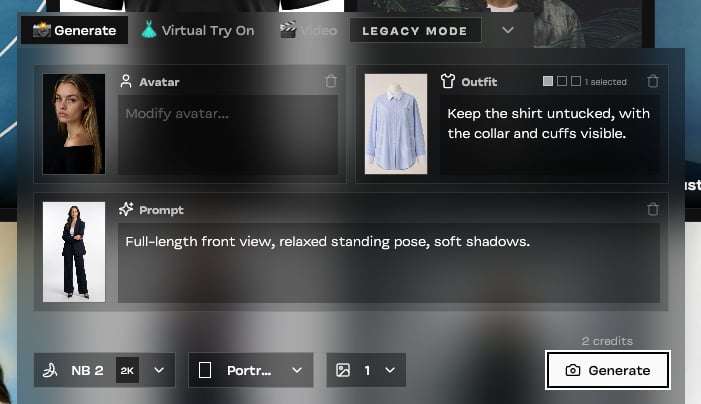
The Generate panel with an avatar, a saved shirt, a studio preset, and short styling directions.
If the result needs work
Learn how to prepare better source photos →